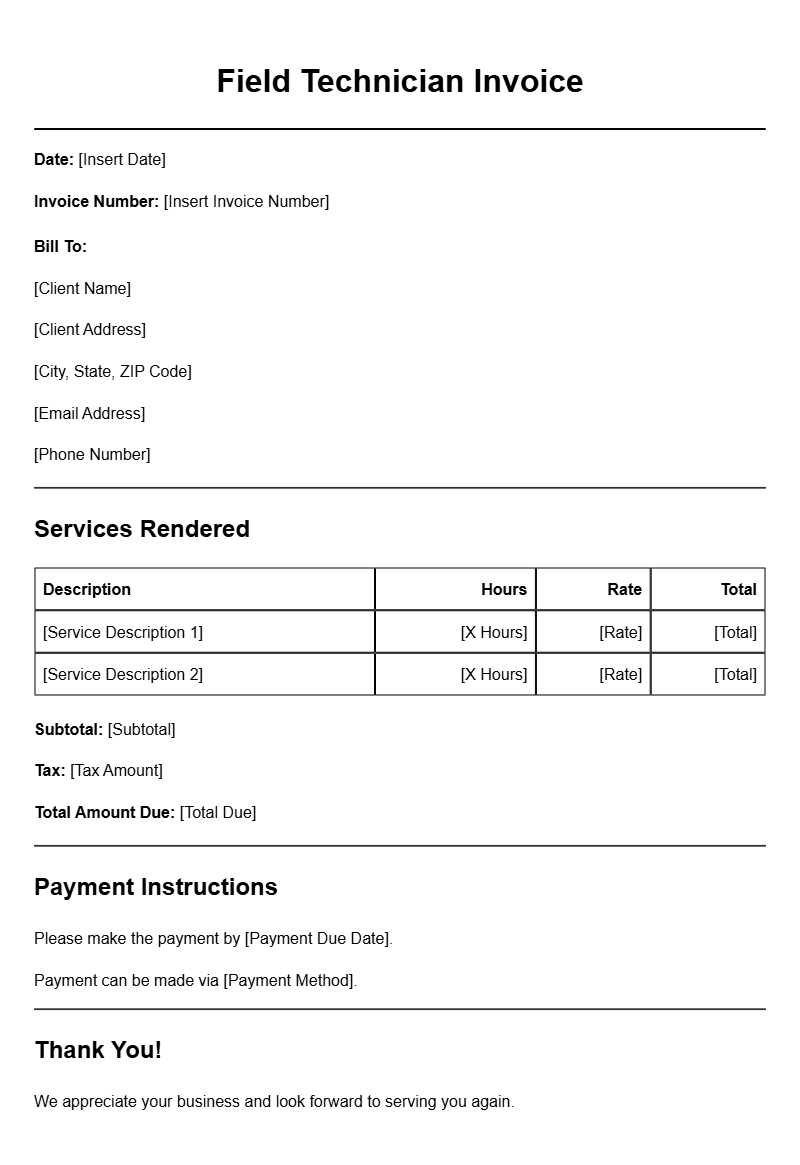
Managing invoices can feel like a daunting task, especially for field technicians who are often on the move. Having a reliable field technician invoice template can make this process smoother and more efficient. Let’s explore what these templates are, when to use them, and how to create one that works for you.
What is a Field Technician Invoice Template?
A field technician invoice template is a pre-formatted document that helps technicians bill clients for services rendered. It includes essential details like service descriptions, costs, payment terms, and contact information. Having a template handy saves time and ensures that all necessary information is included, reducing the likelihood of errors.
When is it Used?
You’ll typically use an invoice template after completing a job for a client. Whether you’ve repaired equipment, conducted maintenance, or installed systems, it’s important to provide an invoice promptly. This not only helps you get paid faster but also keeps your finances organized.
Key Components of a Field Technician Invoice
Most effective invoices share some common sections. Here are the key components you should include:
- Contact Information: Your name, business name, address, phone number, and email.
- Client Details: Include the client’s name, business, and contact information.
- Invoice Number: A unique number for tracking and reference.
- Date of Service: The date when the services were provided.
- Description of Services: A detailed list of what you did, including hours worked and materials used.
- Costs: Break down costs for labor, materials, and any additional charges.
- Total Amount Due: Clear and easy to find.
- Payment Terms: Specify due dates and accepted payment methods.
Step-by-Step Writing Guide
Creating your own invoice template can sound complicated, but it’s straightforward. Follow these simple steps:
- Choose a Format: Decide if you want to create your invoice using a word processor, spreadsheet, or online invoice generator.
- Set Up Your Header: Include your contact information and logo at the top of the document.
- Add Client Information: Leave space for client details right below your header.
- Invoice Information: Create a section for the invoice number and date of service.
- Detail Your Services: Use a table to describe each service, listing the date, description, hours worked, and cost.
- Calculate the Total: Sum all costs and display the total clearly.
- Include Payment Instructions: Provide clear instructions on how clients can pay.
Realistic Examples of Invoice Templates
Here’s a simple example of how your invoice might look:
Your Company Name
123 Service Rd.
City, State, Zip
Email: your@email.com
Phone: (123) 456-7890
Invoice Number: 001
Date of Service: January 1, 2023
Bill To:
Client’s Name
Client’s Company
Client’s Address
Description of Services:
| Date | Description | Hours | Rate | Cost |
|---|---|---|---|---|
| 01/01/2023 | Equipment Repair | 3 | $50 | $150 |
| Total Amount Due: | $150 |
Payment Terms: Due upon receipt.
Common Mistakes to Avoid
When creating your invoice, be mindful of these common pitfalls:
- Missing Information: Ensure all necessary sections are complete to avoid confusion.
- Ambiguous Descriptions: Be specific about the work done to avoid disputes.
- Incorrect Totals: Double-check your calculations to ensure accuracy.
Tips for Customization
Personalizing your invoice can make a difference in how clients perceive your professionalism. Here are some tips:
- Branding: Use your company colors and logo to make it visually appealing.
- Personal Touch: Add a thank-you note or a short message to express appreciation for the client’s business.
- Adjust Layout: Modify the layout to fit your style, but keep it clean and easy to read.
Having a solid field technician invoice template can streamline your billing process and improve cash flow. By following the steps outlined and avoiding common errors, you can create invoices that not only get you paid but also enhance your professional image. If you’re looking for more specialized templates, check out the options available for game developers, scaffolding contractors, content creators, camera rentals, and drone photography.
Practical Document Examples